How to use the Apple TV menu: buttons, Control Center and fixes
Which button does what on each Siri Remote, where the settings live, and what to do when the menu won't open or keeps popping up.
On the silver Siri Remote, press the Back button to go back a screen, and press and hold it to jump to the Home Screen. On the older black remote, the MENU button does the same thing. Press and hold the TV button to open Control Center. All other settings are in the Settings app on the Home Screen. If the menu button stops responding, restart the Apple TV from Settings, then System, then Restart, or unplug it for a minute.
Which remote do you have?
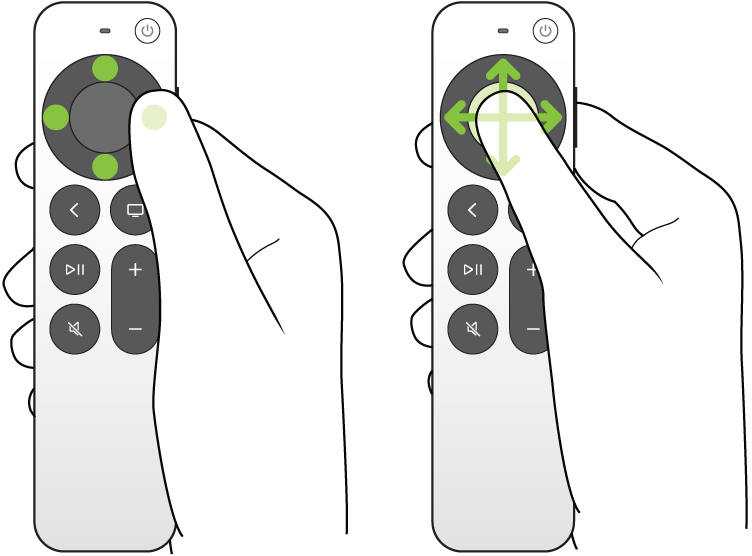
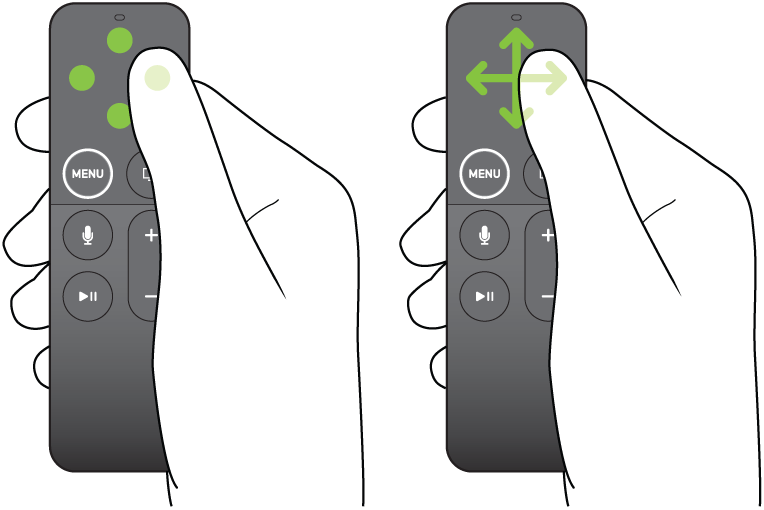
Apple TV 4K has shipped with two kinds of remote. The newer silver Siri Remote (2nd generation or later) has a round clickpad with an outer ring, a Back button marked with an arrow, and a TV button. The older black Siri Remote (1st generation) has a glass touch surface at the top and a button labeled MENU. Both work with current Apple TV 4K models, but the buttons have different names, so the steps below cover both.
What each menu button does
Apple's user guide lists these actions for tvOS 27. To make the TV button go to the Home Screen instead of the Apple TV app, open Settings, go to Remotes and Devices, select TV Button and choose Home Screen.
| Button | Press | Press and hold |
|---|---|---|
| Back (silver remote) | Go back one screen | Go to the Home Screen |
| MENU (black remote) | Go back one screen | Go to the Home Screen |
| TV button | Open the Apple TV app (or the Home Screen, if you change it) | Open Control Center |
| Clickpad center or touch surface | Select the highlighted item | Open a pop-up menu, or rearrange apps |
How to move around the menus
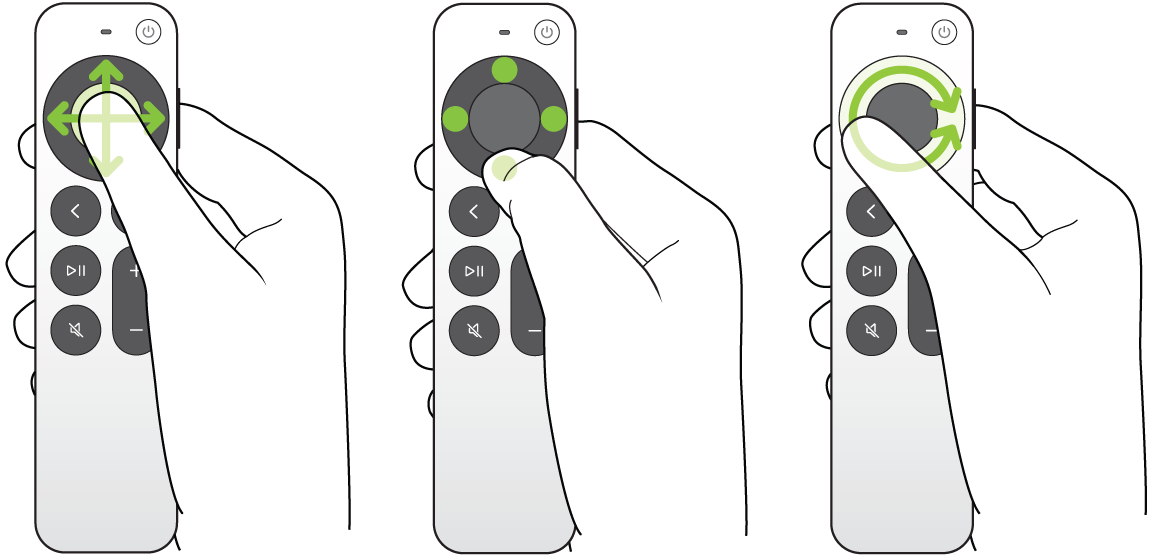
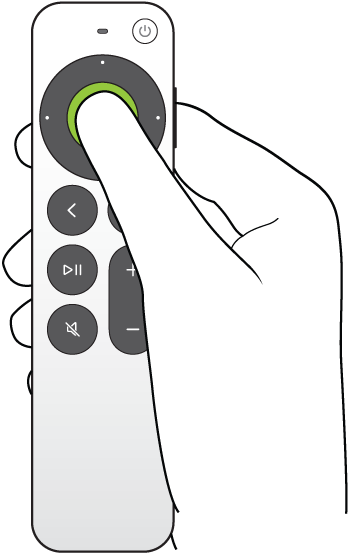
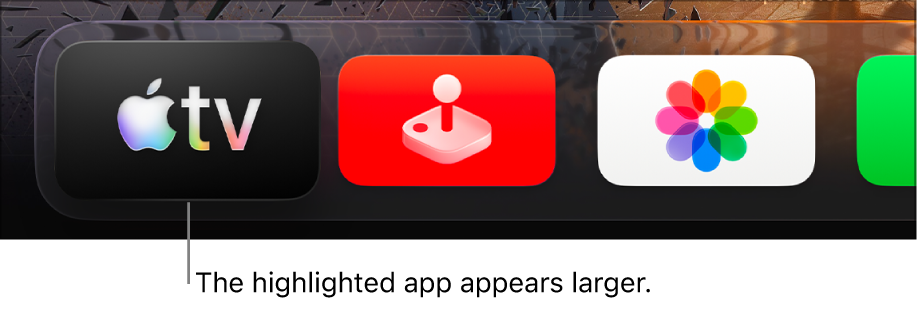
- Highlight items: press up, down, left or right on the clickpad ring, or swipe on the clickpad or touch surface. The highlighted app gets slightly bigger.
- Select: press the center of the clickpad or the touch surface.
- See more options: press and hold the center on a movie, show, song or app to open a pop-up menu. Press and hold an app on the Home Screen to move it.
- Scroll fast (silver remote): press and hold a direction on the ring, or circle your finger around the ring for finer control.
- Previews: apps in the top row of the Home Screen play a preview. Swipe up to see it full screen; press Back or MENU to return.
Open Control Center
Control Center is the quick menu for switching profiles, playing music, putting the Apple TV to sleep and changing audio output. Press and hold the TV button to open it, and press Back or MENU to close it, according to Apple Support. Controls you might expect in a settings menu, such as AirPods audio and sleep, are usually faster here.
Find the Settings menu
Most options are in the Settings app, the gray gear icon on the Home Screen. The sections you'll use most are Remotes and Devices (TV button, remote pairing, TV control), Video and Audio (resolution, frame rate, audio format), Accessibility (text size, bold text) and System (software updates, restart).

The sidebar in the TV, Music and Podcasts apps
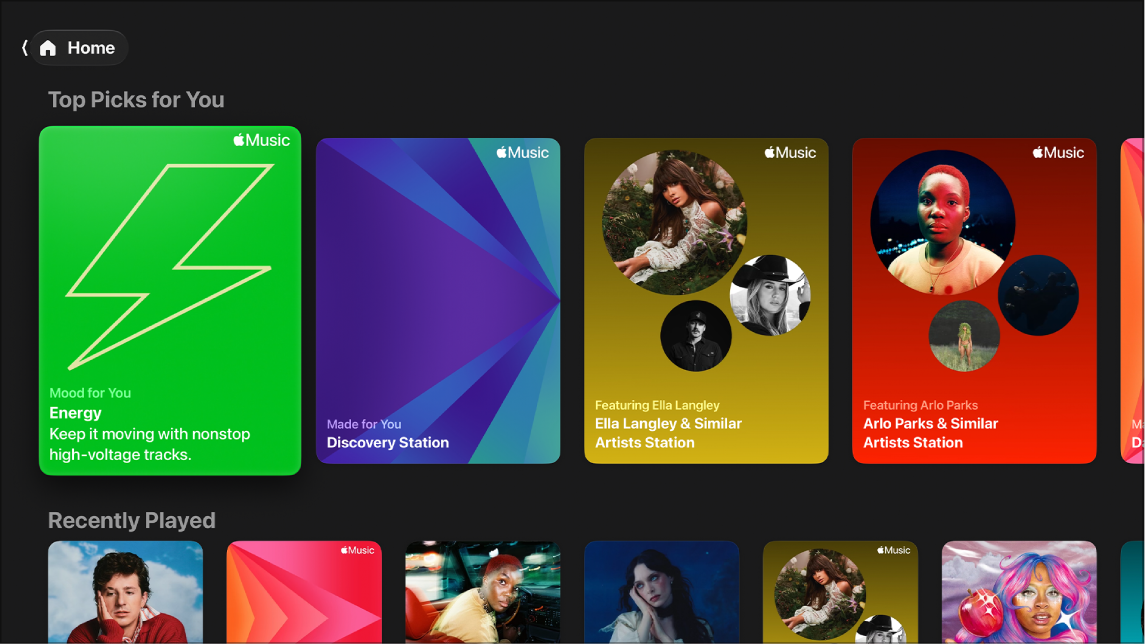
Inside the Apple TV app, the menu is a sidebar on the left. Press Back or MENU, or swipe up on the clickpad or touch surface, to open it. With tvOS 27, the redesigned Podcasts app and the Music app use the same sidebar, so navigation works the same way in all three. See what's new in tvOS 27 for the other changes.
Make menu text bigger
Go to Settings, then Accessibility, then Display. Turn on Bold Text, or select Text Size and move the slider. Apps that support Dynamic Type adjust automatically; in tvOS 27, text size works across all of them.
The "hidden" Software Updates menu
SlashGear reported in February that Apple TV has an extra menu on the Software Updates screen. Go to Settings, then System, then Software Updates, then press the Play/Pause button. Most people never need it; use it only if you know which option you're looking for.
If the menu button is not working
- Restart the Apple TV: go to Settings, then System, then Restart. If you can't reach Settings, unplug the Apple TV for about a minute, then plug it back in.
- Charge the remote: the silver remote charges over USB-C (newer models) or Lightning; the 1st-generation remote charges over Lightning. A low battery can make buttons respond only some of the time.
- Re-pair the remote: stand close to the Apple TV and follow Apple's pairing steps for your remote model. Apple's support site lists the button combination for each remote.
- Use your iPhone instead: open Control Center on an iPhone or iPad and tap the Apple TV Remote. On the Apple TV Remote screen, press and hold the TV button to open Control Center, as Reddit's r/appletv users point out.
- Update tvOS: install the latest update from Settings, then System, then Software Updates.
If the menu keeps popping up
When menus open on their own or the Apple TV wakes up and changes the TV's input, the cause is usually HDMI-CEC, the feature that lets devices control each other over HDMI. A TV remote, soundbar or game console can send commands the Apple TV reacts to. Check the TV-control options in Settings, then Remotes and Devices, and on the TV itself. On LG TVs the feature is called SIMPLINK; our SIMPLINK guide covers turning it off or limiting it.
A remote stuck under a cushion or a pet stepping on the clickpad can also trigger menus. If it only happens at certain times, check where the remote is.
Choosing an Apple TV
If you're deciding whether to upgrade, our Apple TV 4K review covers the newest model, and our streaming device guide compares Apple TV with Roku, Fire TV and Google TV.
Questions
Where is the menu button on the new Apple TV remote?
The silver Siri Remote has no MENU button. The Back button, marked with an arrow, replaces it.
How do I get to the Home Screen?
Press and hold Back or MENU, or set the TV button to go to the Home Screen in Settings, Remotes and Devices, TV Button.
How do I open Control Center on Apple TV?
Press and hold the TV button on the remote.
Can I use an iPhone as an Apple TV remote?
Yes. Use the Apple TV Remote in Control Center on an iPhone or iPad.
- Apple Support, Apple TV 4K User Guide (tvOS 27), checked Oct 29, 2026. Illustrations and screenshots courtesy of Apple.
Jean founded ShopHighSpeed after trying to find one straight answer about business internet in his own town. He has been a Comcast and Verizon Fios customer, and ranks providers on what they actually deliver, not on what they advertise.