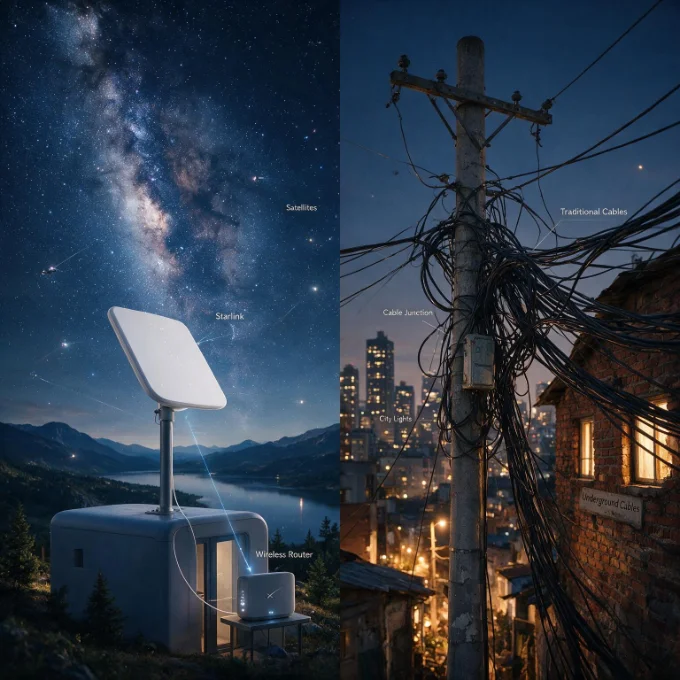
Set up Starlink for the fastest speeds
The dish does most of the work — but where you mount it makes the difference between 50 and 250 Mbps. Here's how to get it right the first time.
Use the Starlink app's obstruction check first, mount the dish as high as possible with a totally clear view of the sky, run the cable through the shortest path, and keep the router central and elevated. A clean sky view is worth more than any setting.
Setup, step by step
The one thing that matters most
Obstructions cause nearly every Starlink slowdown. Even a single tree branch clipping the dish's view triggers brief dropouts as satellites pass behind it, and because the constellation is always moving, an obstruction that seems minor can interrupt you dozens of times an hour. Run the app's obstruction scan for a full clear reading before you commit to a spot — and mount higher than you think you need to.
Haven’t bought the kit yet? See where to buy Starlink: the Standard kit is $349 nearly everywhere, or a $0 rental in some areas.
The app's augmented-reality obstruction tool is the single most useful thing in the box. Point your phone around the sky from the dish's proposed location and it maps exactly where trees, rooflines, or poles will block the view. Spend ten minutes on this before you drill anything; it's far easier to pick a better spot now than to diagnose mysterious dropouts later.
Before you start
The standard kit includes the dish (which self-orients), the Wi-Fi router, a length of cable connecting the two, and a basic mount. Plan two things before install day: where the dish will get its clear view of the sky, and where the router will live inside so its Wi-Fi reaches the rooms you use. The cable run between them is a real constraint, so measure the distance and buy a longer cable or a different mount up front if the ideal dish spot is far from where the router needs to be. Have a phone with the Starlink app installed and charged — you'll drive the whole setup from it.
Getting placement right
Higher and clearer always wins. A roof or a pole mount almost always beats a ground stand, because even low obstructions like a fence or a shrub matter when the dish is near the ground. A few placement rules that save headaches:
- →Aim for a fully clear obstruction scan — anything less means periodic dropouts.
- →Mount above the tree line, and account for how trees look in summer when they've leafed out.
- →Keep the cable route sensible — you'll need to pass it through a wall or window bridge.
- →In snowy climates, leave room for the dish's self-heating to shed snow, and angle the mount so melt runs off.
Troubleshooting after install
Most early problems trace back to the sky view or the Wi-Fi, not the service. If you see brief, repeated dropouts, check the app's obstruction map again — a branch you missed is the usual cause. If the internet is up but weak in part of the house, that's a Wi-Fi coverage issue with the included router, solvable by better placement or adding a mesh node, not a Starlink fault. And if the dish won't connect at all after setup, a power-cycle and a check that the cable is fully seated resolves it more often than not. Give the system a little time on first boot, too — it downloads updates and finds its optimal orientation over the first hour.
Still deciding whether Starlink is even right for you? Our Starlink vs. cable comparison covers when satellite is the better call.
Jean founded ShopHighSpeed after trying to find one straight answer about business internet in his own town. He has been a Comcast and Verizon Fios customer, and ranks providers on what they actually deliver, not on what they advertise.