The best routers with parental controls
Router-level controls cover every device in the house, from a tablet to a game console. Some are free; some charge a monthly fee.

For the strongest controls in one box, get the Gryphon AX, built around filtering and screen-time limits. For a mesh system the whole family uses, eero with eero Plus or TP-Link Deco with HomeShield add profiles, schedules and content filters. Asus routers include basic controls free. No router can see inside apps or block mobile data, so pair it with your phones' built-in controls or an app like Aura.
Some links on this page are affiliate links: We may earn a commission if you sign up or buy, at no cost to you. It never affects our rankings. For more information, see our Advertiser disclosure.
Black Friday 2026: Amazon, Best Buy and Walmart hadn't announced their Black Friday sale dates as of Oct 29. Black Friday is Nov 27, and Amazon's sale opened Nov 20 last year. Until sale prices go live, see our Black Friday deals hub.
The picks
Gryphon AX
Parental controls are the main feature, not an add-on: per-child profiles, bedtime schedules, content filtering and an app that shows what's being blocked.
Worth knowing: Advanced filtering and protection need Gryphon's subscription after the trial.
Check price →eero 7 with eero Plus
Profiles let you pause the internet for a child's devices, set schedules and filter content. Simple enough that every adult in the house can use it.
Worth knowing: Content filtering and blocking need eero Plus, about $100 a year.
Check price →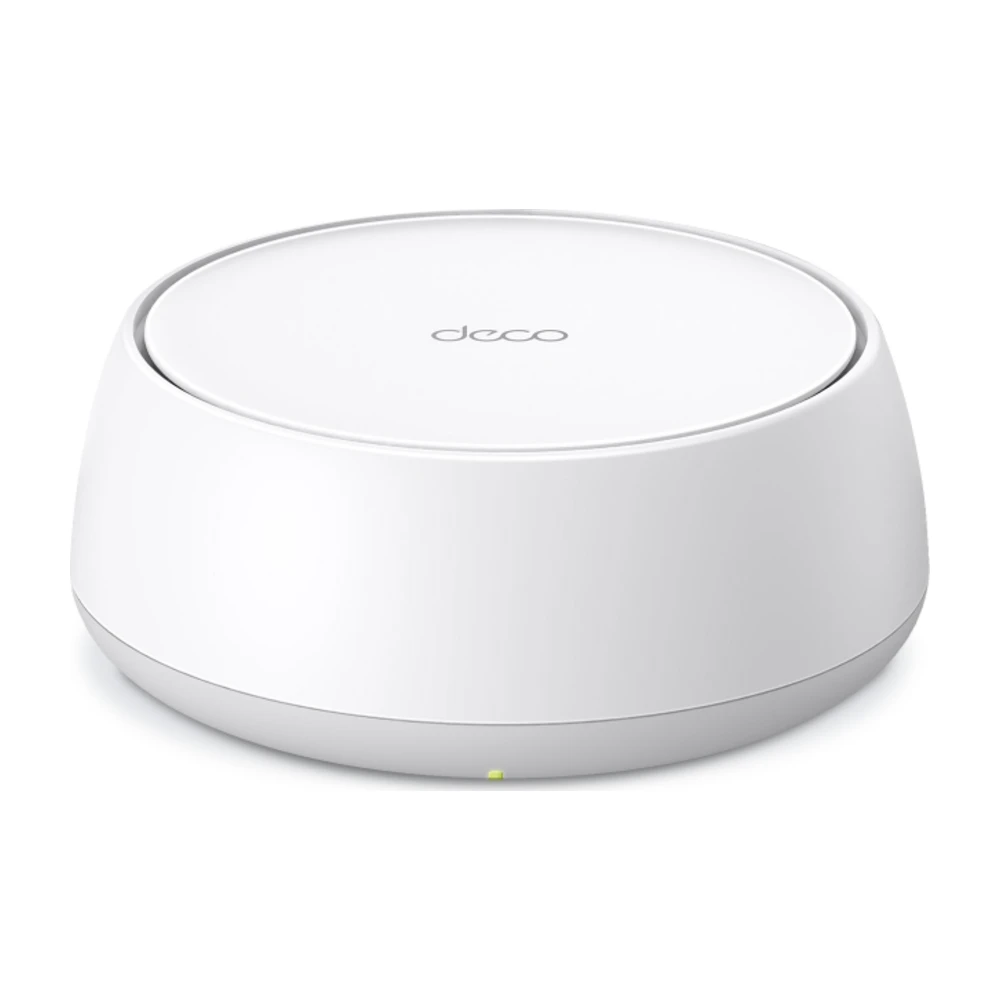
TP-Link Deco BE25
Free HomeShield basics include profiles, time limits and pausing. HomeShield Pro adds detailed filtering and reports. See our Deco BE25 review.
Worth knowing: The best filtering is in the paid tier.
Check price →Asus routers with AiProtection
Asus includes parental controls, content filtering and time scheduling at no cost on most current models.
Worth knowing: Asus's menus are less friendly than eero or Deco.
Check price →Our picks compared
Subscription prices and features change. Check the maker's current page and any trial terms before you buy.
| Gryphon AX | eero 7 + eero Plus | TP-Link Deco BE25 | Asus with AiProtection | |
|---|---|---|---|---|
| Type | Router or mesh | Mesh | Mesh | Router |
| Profiles per child | Yes | Yes | Yes | Yes |
| Bedtime schedules | Yes | Yes | Yes | Yes |
| App blocking | Yes | Some | Some | Some |
| Subscription for full features | Yes | Yes | Optional | No |
What's free and what costs extra
Prices and features change, so check each maker's current plan before you buy.
| System | Free | Paid tier |
|---|---|---|
| Gryphon | Basic profiles and schedules | Advanced filtering and protection |
| eero | Profiles, pause, schedules | eero Plus: filtering, blocking, ad blocking |
| TP-Link Deco | HomeShield basics: profiles, time limits | HomeShield Pro: filtering, reports |
| Asus | Filtering, schedules, profiles | None needed |
What a router can't control
For monitoring across phones and computers, an app such as Aura covers devices on any network. Our guide to securing your home Wi-Fi covers the basics.
- Mobile data: when a phone leaves Wi-Fi, router rules don't apply. Use Screen Time on iPhone or Family Link on Android.
- What happens inside apps: a router can block an app or site, but not specific videos or chats.
- VPNs and private DNS: a determined teen can bypass router filters; Gryphon and some Asus models can block known VPNs.
Pair the router with device controls
Router controls only work on your home Wi-Fi. On a phone with mobile data, or at a friend's house, they don't apply. That's why most families combine router controls with the controls built into phones and consoles.
Apple Screen Time, Google Family Link, Microsoft Family Safety and the PlayStation and Xbox family apps all work wherever the device is. They also control app installs and purchases, which a router can't do. Use the router for the whole-home layer: blocking adult sites on every device, pausing the internet at dinner, and covering devices without their own controls, like smart TVs.
- iPhone and iPad: Screen Time.
- Android: Google Family Link.
- Windows and Xbox: Microsoft Family Safety.
- PlayStation: PlayStation Family Management.
- Nintendo Switch: Nintendo Switch Parental Controls app.
How to set up parental controls
Setup is similar on every router. The work is in getting each device into the right profile.
- Create a profile for each child in the router app.
- Assign devices to the profile. On phones and laptops, turn off private Wi-Fi addresses ("Private Wi-Fi Address" on iPhone, "Use randomized MAC" on Android) for your home network, or the router may not recognize the device.
- Pick a filter level based on age.
- Set a bedtime or school-night schedule.
- Test it: try a blocked site from the child's device and check that it's blocked.
- Review the activity report after a week and adjust.
Setting rules that last
Kids tend to accept rules that are clear and consistent. Many parents start with a few simple ones: no devices after bedtime, homework sites only on school nights, and a shared family pause at dinner. The router's schedule feature can do all three automatically, so you aren't the one switching off the Wi-Fi every night.
Review the rules every few months. Filters set for an 8-year-old are usually too strict for a teenager doing research for school. Most apps let you change a profile's filter level in seconds. Router reports also show which sites and apps take up the most time, which is often a better conversation starter than a block.
Teenagers and privacy
Router controls work differently for a 15-year-old than for a 7-year-old. Strict filters and detailed activity reports can feel like surveillance to a teenager and push them to use mobile data instead. Many families switch to lighter rules for teens: a bedtime pause, safe search and blocks on adult content, with activity reports turned off.
Talk about the rules and why they're there. Router reports can also show which devices are online at 2 a.m., which is useful information whatever the filter settings.
Consoles and smart TVs
Router controls can pause or schedule a game console or TV like any other device, which works well for school-night limits. They can't limit specific games or purchases. For that, use the console's own family settings: PlayStation Family Management, Xbox Family Settings and the Nintendo Switch Parental Controls app all set play time, age ratings and spending limits.
Smart TVs and streaming sticks have profile and PIN settings in each app, such as Netflix and YouTube Kids. Set those up alongside the router's content filter.
Guest devices and visitors
Friends' phones and tablets join your Wi-Fi without a profile, so they aren't filtered unless you set a default rule. Most routers let you apply a filter level to all unassigned devices or to the guest network. Turn that on if children's friends visit often. Our mesh vs. extender guide also covers how to extend coverage for a guest room.
Safe search and DNS filtering
For a free option that works with any router, set the router's DNS to a family filtering service. CleanBrowsing's Family filter and OpenDNS FamilyShield block adult sites and enforce safe search on Google, Bing and YouTube. They don't offer schedules or per-child profiles, but they cover every device on the network, including guests.
Mesh coverage for kids' rooms
Parental controls only help if the router covers the whole house. If a child's bedroom has weak Wi-Fi, they'll switch to mobile data, where the router can't filter anything. Mesh systems like eero and Deco extend coverage while keeping one set of controls. Our mesh Wi-Fi guide covers the options.
If you're renting your ISP's gateway, check its app first. Xfinity, Spectrum and AT&T include basic parental controls in their apps, often at no extra cost. Our Xfinity router guide explains how to add your own router if you want more control.
How we picked
We compared each system's parental control features, what's free vs. paid, ease of use and published reviews. More in how we research.
Questions
What is the best router for parental controls?
The Gryphon AX if controls are the priority. eero or Deco if you want an easy mesh system with good controls.
Can I set parental controls without a subscription?
Yes. Asus routers and TP-Link HomeShield basics include free profiles, schedules and pausing.
Do router parental controls work on mobile data?
No. They only apply while a device is on your Wi-Fi.
Can kids get around router parental controls?
Some can. Common workarounds include VPN apps, switching to mobile data and changing a device's MAC address. Routers with app-level controls can block VPN apps, and device-level controls such as Screen Time cover mobile data.
Do router parental controls slow down the internet?
Not noticeably. Filtering happens at the DNS or router level and adds very little delay.
- Maker product pages, specifications and support documents, checked Oct 29, 2026
- Published reviews and lab tests from independent outlets, noted in the text where used
Our picks are based on specs, maker documentation and published lab tests, noted where used.
Prices and offers change often; confirm at your address before you order. How we research
Jean founded ShopHighSpeed after trying to find one straight answer about business internet in his own town. He has been a Comcast and Verizon Fios customer, and ranks providers on what they actually deliver, not on what they advertise.